From Chat Dump to Knowledge Base
The Great Migration, Part 3: In which we open the filing cabinet, throw out the sourdough conversations, and organize what’s left into something a future version of you will actually thank you for.

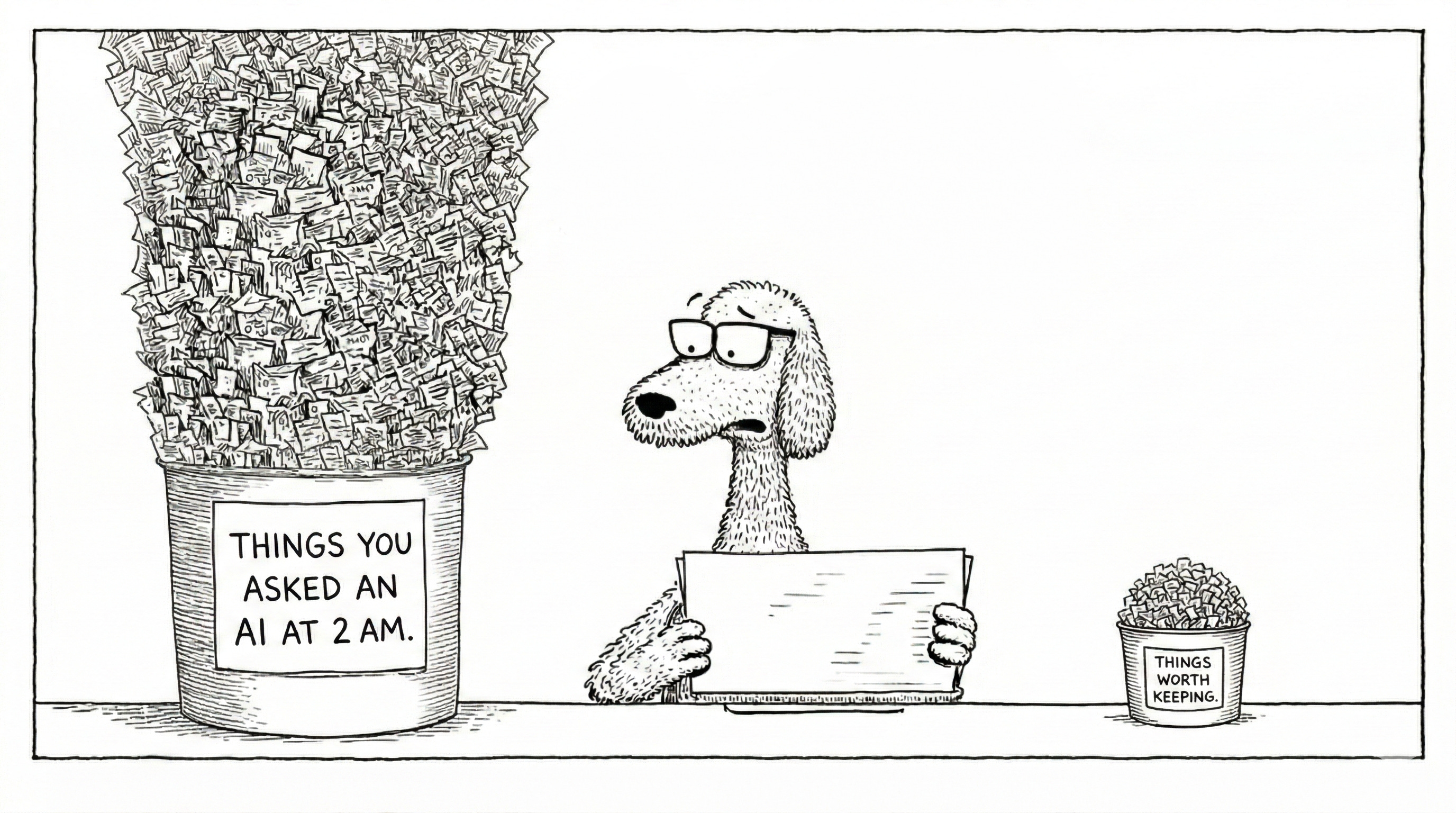
If you’ve been following this series, your Claude now knows who you are and can search your old ChatGPT conversations on demand. Congratulations. You’ve gone from “starting over” to “slightly organized chaos.”
But here’s the thing about searching raw conversations: it’s like Googling your own brain. Sometimes you get exactly what you need. Sometimes you get a conversation from eight months ago where ChatGPT confidently told you something that turned out to be wrong, and you never corrected it, and now it’s sitting in your knowledge base like a landmine wearing a lab coat.
Raw conversation history is not a knowledge base. It’s a transcript of you building knowledge, complete with wrong turns, abandoned ideas, repeated questions, and at least three conversations about sourdough that you’re choosing not to think about right now.
This guide turns the transcript into the library. The tool doing most of the heavy lifting is Cowork, and the output is a set of Claude Projects, organized, curated, and actually useful.
Let’s get into it.
Why Raw Conversations Make Terrible Knowledge Bases
Before we start organizing, it’s worth understanding why just having your conversations searchable (the outcome of the previous post) isn’t the finish line.
Conversations meander. You ask a question, get an answer, ask a follow-up, go on a tangent, come back, realize the original answer was wrong, get a better answer, then ask an unrelated question in the same thread because opening a new conversation felt like too much commitment. We’ve all done this. It’s the AI equivalent of going to the grocery store for milk and coming home with a candle, a magazine, and no milk.
When you search this kind of content, you get results that include the wrong answer alongside the right one, the tangent alongside the insight, the abandoned draft alongside the finished version. Claude doesn’t know which is which. It just sees text.
Organization solves this. Instead of searching through everything and hoping for the best, you build curated collections where:
The wrong answers have been removed
The tangents have been trimmed
Related knowledge from multiple conversations has been grouped together
Claude knows what the knowledge is for and how to use it
This takes effort. But it’s the kind of effort that pays dividends every time you use Claude for the next six months. Think of it as the difference between a junk drawer and a toolbox. Same stuff. Radically different usefulness.
Phase 1: Triage (The Hard Part You’ll Thank Yourself For)
The first step isn’t organizing. It’s deciding what’s worth organizing at all.
If you’ve used ChatGPT for a year, you might have 500 to 2,000 conversations. Reading all of them to decide which ones matter would take approximately the rest of your natural life, and you have things to do. So we’re going to let Cowork do the reading.
Step 1: Open Cowork and point it at your export
If you set this up in Post 2, you know the drill. Open Claude Desktop, switch to Cowork, and give it access to the folder containing your unzipped ChatGPT export.
Step 2: Ask Cowork to scan and categorize
Here’s where it gets good. Paste this prompt (or something like it) into Cowork:
“Scan my ChatGPT conversation history. Create a summary report that lists every conversation by title, date, and primary topic. Group them into categories (for example: Research, Code & Development, Writing & Creative, Strategy & Planning, Quick Questions, Personal). For each conversation, give it a 1-5 value score based on: how substantive the discussion was, whether it reached useful conclusions, and whether the information is likely still relevant. Save the report as a Markdown file called ‘conversation-triage.md’.”
Go make a coffee. Or a meal. This takes a few minutes depending on how massive your export is. When Cowork finishes, you’ll have a categorized inventory of your entire ChatGPT history with value scores.
Step 3: Review the triage report
Open the file Cowork created. You’re looking for three categories:
Keep (score 4-5): Conversations with real substance. Research that reached conclusions. Decisions with documented rationale. Technical solutions that worked. Creative work you’re building on. These are going into Claude Projects.
Archive (score 2-3): Conversations that were useful at the time but aren’t actively relevant. You don’t need to organize these, but you don’t need to delete them either. They stay in your export folder, queryable through Cowork whenever you want.
Discard (score 1): Quick questions. Abandoned threads. Conversations where the AI hallucinated and you moved on. The seventeen times you asked “what time is it in Tokyo” because you kept forgetting the time difference. These add nothing to your knowledge base and actively dilute it.
You might be surprised by the ratio. For most people, it shakes out to something like 15-20% Keep, 30-40% Archive, and 40-50% Discard. This is normal. It means you’ve been using ChatGPT like a normal person, as a tool for thinking, not as an archivist. The fact that most conversations aren’t worth preserving doesn’t mean they weren’t worth having.
Step 4: Quality check the “Keep” list
Before we extract anything, one more pass. Scan your Keep list for:
Outdated information. A market analysis from 2023 may have conclusions that are now wrong. Flag it, you can still keep it, but mark it as historical context, not current truth.
Hallucination risk. ChatGPT sometimes generates plausible-sounding facts that are entirely fabricated. If a conversation contains specific claims, statistics, quotes, dates, technical specifications, flag those for verification. Do not simply trust them because past-you didn’t push back at the time. Past-you was tired and had a deadline. We’ve all been there.
Superseded conclusions. If you researched the same topic multiple times, the earlier conversations may have conclusions that the later ones overturned. Keep the most recent version. Archive the earlier ones as context, not canon.
This quality check is the step that separates a knowledge base from a junk heap with labels on it. It takes fifteen minutes and prevents months of subtle problems.
Phase 2: Extract and Transform (Let Cowork Do the Work)
Now we turn the raw conversations into clean, organized files that Claude Projects can actually use well.
Step 5: Extract the Keep conversations
Back in Cowork, give it your curated list:
“From my ChatGPT export, extract the following conversations: [paste your Keep list here, or reference the triage file]. For each conversation, create a clean Markdown file that includes: a title, the date, a 2-3 sentence summary of what the conversation covered, and then the full conversation cleaned up, remove any system messages, remove failed/abandoned branches, and keep only the final useful thread. Save all files in a new folder called ‘extracted’.”
Cowork will produce individual, readable Markdown files from the raw JSON. Each one is a clean version of a conversation, no metadata noise, no branching tree structure, no system-level artifacts that mean nothing to you.
Step 6: Group by topic
Still in Cowork:
“Look at the extracted conversation files. Group them into topic folders based on their content. Create folders like ‘Product-Strategy’, ‘Code-Patterns’, ‘Market-Research’, ‘Writing’, or whatever categories emerge naturally from the content. Move each file into the appropriate folder. If a conversation spans multiple topics, put it in the primary topic folder and note the secondary topics at the top of the file.”
You now have a folder structure that looks something like:
extracted/
├── Product-Strategy/
│   ├── pricing-model-research.md
│   ├── competitor-analysis-q4.md
│   └── feature-prioritization-framework.md
├── Code-Patterns/
│   ├── react-performance-optimization.md
│   ├── api-authentication-design.md
│   └── database-migration-strategy.md
├── Market-Research/
│   ├── target-audience-analysis.md
│   └── industry-trends-2024.md
└── Writing/
    ├── blog-voice-development.md
    └── newsletter-strategy.md
This already looks nothing like the dumpster fire of conversations.json, and we haven’t even opened Claude Projects yet.
Step 7 (Optional but recommended): Create topic summaries
One more Cowork request that pays enormous dividends:
“For each topic folder, create a summary file called ‘OVERVIEW.md’ that synthesizes the key insights, decisions, and conclusions across all the conversations in that folder. If there are contradictions between conversations, note them. If there’s a clear evolution in thinking over time, describe that progression. Keep each overview to one page.”
These overviews become the most valuable files in your entire knowledge base. They’re distilled knowledge, the conclusions without the meandering, the decisions without the deliberation, the answers without the forty-message preamble of increasingly frustrated prompts. They’re what your future self actually needs when they ask, “What did I figure out about pricing strategy?”
Phase 3: Build Claude Projects (The Payoff)
Time to load this organized knowledge into Claude where it becomes permanently useful.
Step 8: Create topic-specific Projects
For each major topic folder, create a Claude Project:
Open Claude (web or desktop).
Click New Project in the sidebar.
Name it clearly: “Product Strategy,” “Code Patterns,” “Market Research,” etc.
Upload all the Markdown files from that topic folder into the Project’s Knowledge Base. Include the OVERVIEW.md file, it’s the most important one.
Sizing guidance: Claude Projects with RAG (Retrieval Augmented Generation) can handle substantial document sets. But quality beats quantity. If you have thirty files in one topic, consider whether they all belong in the same Project or whether you’d be better served by splitting into sub-topics. A Project called “Marketing” that contains everything from brand voice to paid acquisition to email strategy is less useful than three focused Projects.
Step 9: Write Project Instructions
This is the step that 90% of people skip. It’s also the step that determines whether your Project is a static file dump or a functioning knowledge system.
Project Instructions tell Claude how to use the knowledge you’ve uploaded. Without them, Claude will reference the files when it thinks they’re relevant, which is fine, but “fine” is not what we’re going for here. We’re going for “actually good.”
Here’s a template you can adapt for each Project:
Project Instructions example for a “Product Strategy” Project:
This Project contains my product strategy research and decisions from 2024-2025. It includes competitive analysis, pricing model research, feature prioritization frameworks, and user research findings.
When I ask questions about product strategy, reference this knowledge before drawing on general knowledge. Prioritize the OVERVIEW.md file for high-level context, then drill into specific conversation files for detail.
Important context: Some earlier research (before September 2024) may reference market conditions that have changed. When referencing older material, note the date and flag if conditions may have shifted.
If I ask about a topic where the knowledge base contains conflicting conclusions from different time periods, present the most recent conclusion first and note the evolution.
Adapt this for each Project. The investment is five minutes per Project. The return is Claude understanding not just what you know, but how you want it used. That’s the difference between an assistant who hands you a stack of papers and one who reads them, understands your priorities, and briefs you on what matters.
Step 10: Verify
Start a conversation in each Project and test it:
Ask a question that should be answerable from the uploaded knowledge
Ask a follow-up that requires synthesis across multiple files
Ask about something that has conflicting information across different time periods
Ask something the knowledge base doesn’t cover, to make sure Claude says “I don’t have information about that in this project” rather than making something up
If the answers feel informed, contextual, and grounded in your actual history, you’re done. You’ve built a knowledge base.
The Maintenance Mindset (Two Minutes a Week)
A knowledge base is a living thing. Here’s how to keep it useful without making it a second job:
When you have a valuable Claude conversation: At the end of the conversation, ask Claude to summarize the key decisions or insights. Copy that summary into the relevant Project’s knowledge base. This takes thirty seconds and means your Projects grow smarter over time.
Monthly review (optional): Once a month, skim your Project overviews. Ask yourself: is any of this outdated? Has my thinking evolved? If so, update the OVERVIEW.md. You can literally ask Claude within the Project to help: “Based on our recent conversations, is anything in the OVERVIEW.md outdated or superseded?”
When you add new knowledge: If you’re still running ChatGPT exports periodically (because you’re using both platforms, which is completely reasonable and doesn’t make you unfaithful to anyone), run the triage process from Phase 1 on just the new conversations and add the keepers to the appropriate Projects.
This isn’t a one-time migration project. It’s a knowledge habit. Two minutes a week keeps it current. Zero minutes a week and it slowly becomes a museum. Your call, but I’d pick the two minutes.
Your Post 3 Checklist
Run Cowork triage scan on your ChatGPT export (Phase 1, Steps 1-2)
Review the triage report and classify conversations as Keep/Archive/Discard (Step 3)
Quality-check Keep list for outdated info, hallucinations, and superseded conclusions (Step 4)
Extract and clean Keep conversations via Cowork (Step 5)
Group extracted files into topic folders (Step 6)
Generate topic overview summaries (Step 7)
Create Claude Projects for each major topic (Step 8)
Write Project Instructions for each Project (Step 9)
Verify each Project with test queries (Step 10)
Set a calendar reminder to review and update monthly
What Comes Next
You now have something most AI users don’t: organized, curated, quality-checked knowledge that Claude references automatically. Every conversation in your Product Strategy Project draws on the research you did six months ago. Every coding session in your Code Patterns Project builds on solutions you’ve already found. The knowledge compounds instead of disappearing.
For most people, this is the destination. You’ve migrated your memory, made your history queryable, and organized the valuable parts into a lasting system. That’s a complete migration.
But if you’re the kind of person who looked at this guide and thought, “What if I could automate the triage and extraction steps?”, if you want a pipeline that processes future exports without manual effort, the next post in this series is for you. It involves Claude Code, some light scripting, and the kind of infrastructure that makes the manual process in this guide look charmingly quaint.
No judgment either way. The organized knowledge base you just built will serve you for months. The automated pipeline just means you’ll never have to build it manually again.